
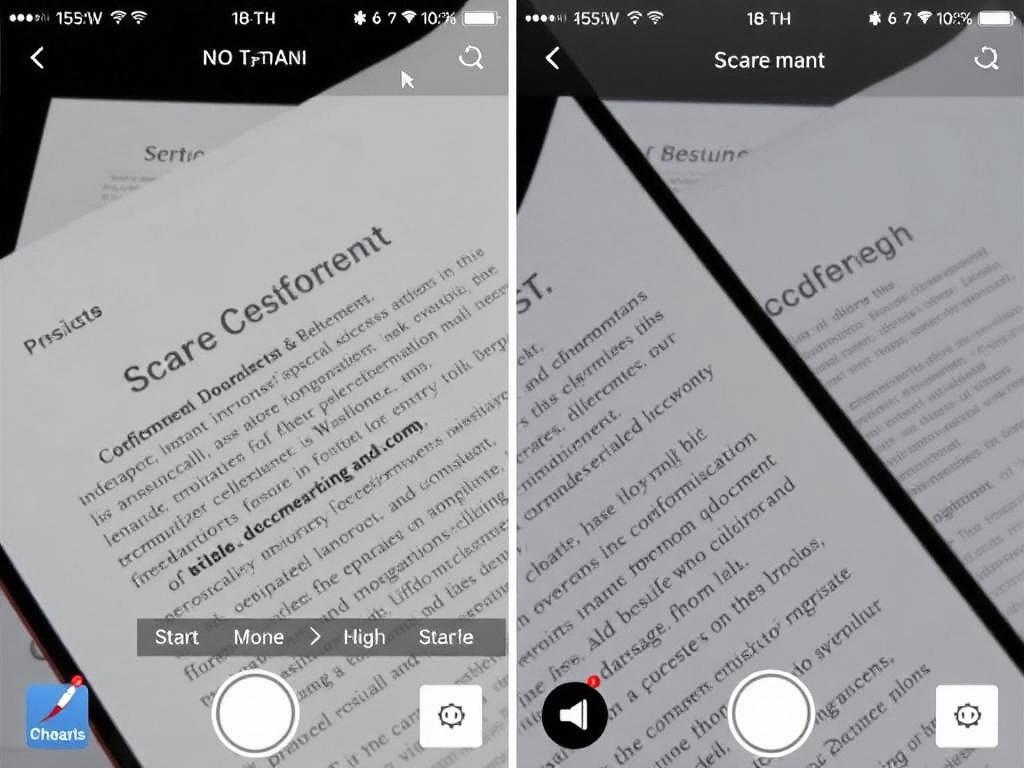
Scanning a document used to mean a bulky machine and fiddly software, but modern phones have quietly taken over that task. With a few taps you can capture a contract, extract the text, and send a searchable file to a colleague — no desktop required. This guide explains how to scan documents with OCR on your phone, step by step, so you can ditch the paper pile without losing information.
Why use OCR on your phone?
Optical character recognition (OCR) converts photographed text into editable, searchable words. That capability changes how you manage receipts, contracts, notes, and printed books by making them easy to find and edit later.
Beyond convenience, OCR saves time: instead of retyping, you can copy, correct, and paste instantly. I began using mobile OCR to archive client signed forms and found I could retrieve specific clauses within seconds during meetings.
What you’ll need before you start
You don’t need a special phone, but a reasonably recent model with a decent camera will improve results. Good lighting, a steady hand or small tripod, and the right app matter more than megapixel counts.
Decide where you will store the converted text: cloud storage, local files, or third-party services. If you plan to maintain a long-term archive, pick a consistent folder structure or naming convention before you begin scanning.
Step-by-step: scan, OCR, and export
Start by opening your chosen scanning app and framing the document flat against a contrasting background. Aim for slight margins around the sheet so automatic edge detection can work, and make sure the entire page is in focus before you capture the image.
After capturing, most apps let you crop, straighten, and adjust contrast; perform these edits to improve OCR accuracy. Then select the OCR or “recognize text” feature — the app will analyze the pixels and convert them into editable text in a matter of seconds.
Finally, export the result in the format you need: searchable PDF for archiving, plain text for editing, or Word document for heavy revisions. Many apps also allow you to send scanned files directly to email, cloud folders, or productivity apps like Evernote and Google Drive.
Capture tips for best accuracy
Lighting is everything: natural, diffuse light reduces shadows and glare that confuse OCR engines. If you’re scanning glossy documents, tilt the page slightly or use a polarizing filter if your app supports it to minimize reflections.
Keep the camera parallel to the page and steady; a small tripod or placing your phone on a stack of books works wonders. If you scan multiple pages, use the app’s batch mode to maintain consistent exposure and perspective across the set.
Recommended apps and a quick comparison
There are many capable apps for both iOS and Android; choose based on your workflow and privacy needs. Below is a compact comparison of three popular options to help you get started quickly.
| App | Platform | Best feature |
|---|---|---|
| Adobe Scan | iOS, Android | Reliable OCR with easy PDF export |
| Microsoft Lens | iOS, Android | Deep integration with Office apps |
| Google Drive Scan | Android (Drive), iOS via Drive app | Simple workflow and automatic cloud storage |
Improving OCR accuracy beyond basics
Choose the correct language in the app’s OCR settings; mismatched languages drastically lower recognition rates. If a document mixes languages or contains unusual fonts, run OCR on smaller sections and correct errors manually for better results.
For handwritten text, expect variable outcomes — modern OCR can handle neat cursive or print, but messy handwriting often needs human correction. Whenever possible, pair OCR with a quick human proofread before you rely on extracted text for critical tasks.
Privacy, security, and storage choices
Decide whether your scanned documents should be saved locally or uploaded to a cloud provider; each choice has trade-offs. Local storage keeps files on your device and is preferable for sensitive documents, while cloud backups protect against device loss and allow easy sharing.
Read the app’s privacy policy to understand whether the provider stores images or uses them to train models. For confidential materials I avoid apps that don’t offer clear, user-controlled retention and deletion policies.
Troubleshooting common problems
If OCR returns gibberish or many errors, verify that the capture is sharp and well lit, then re-run recognition. Complex layouts, columns, or embedded images can confuse OCR, so try segmenting the page into simpler blocks when possible.
When fonts are too stylized or text is tiny, increase contrast and zoom in during capture, or try a different app — engines vary and one may handle a specific font better than another. Keep an archive of original scans so you can reprocess them later with improved tools.
Once you know the basics and keep a few simple habits — steady capture, good lighting, and consistent naming — mobile OCR becomes an everyday tool rather than a project. Start small with receipts or meeting notes, and you’ll soon find yourself reaching for your phone instead of a scanner whenever paper crosses your desk.
