Fresh Tech News on Biett Hub Endanang
  • Home
  • OCR tips
  • Software
  • Technology
  • AI
@2023 - All Right Reserved.
Category:

OCR tips

16 Smart OCR tips for students, researchers, and professionals
OCR tips

16 Smart OCR tips for students, researchers, and professionals

by Andrew Henderson April 12, 2026
written by Andrew Henderson

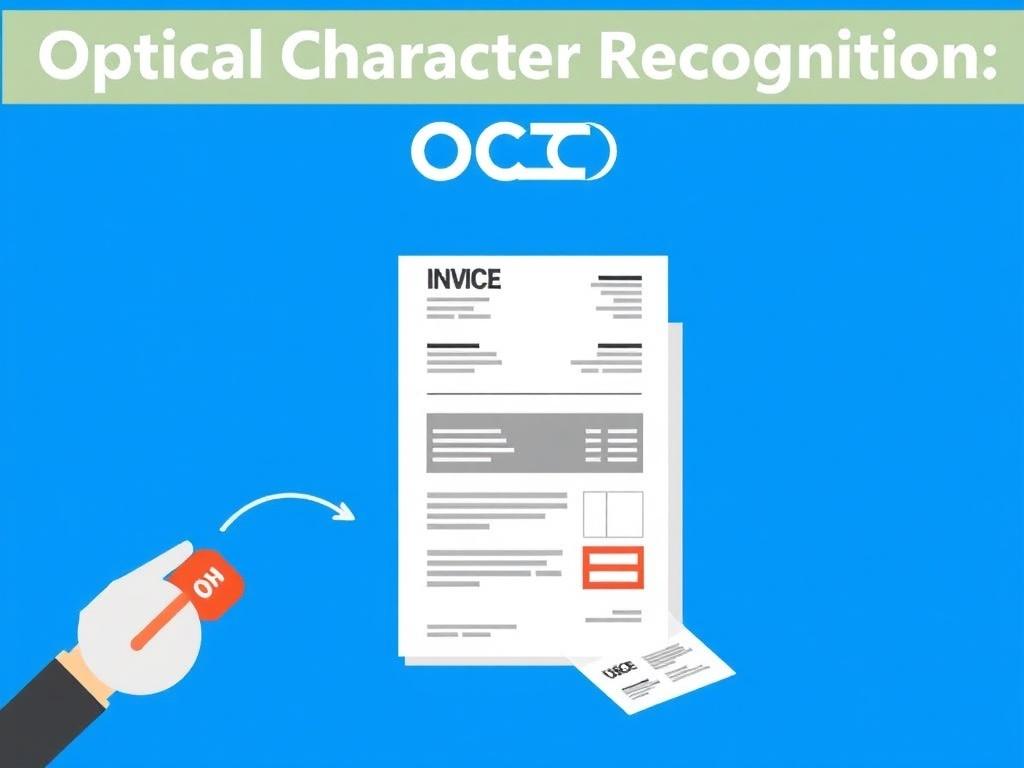
Optical character recognition can feel like magic until it starts mangling your footnotes. Whether you’re digitizing a thesis, mining archival newspapers, or automating invoices, a little preparation and the right settings will save hours of correction later. These practical tips bridge the gap between scanner and searchable text, helping you get reliable output quickly.

Why thoughtful OCR saves time and preserves accuracy

OCR is not simply pressing “convert” and walking away. The quality of your input—paper condition, scan settings, and document layout—has an outsized impact on recognition accuracy, and tiny errors compound in long documents or automated pipelines. Investing minutes to set up scans and choose the correct options often prevents hours of manual proofreading.

Beyond convenience, clear OCR output supports reproducible research and accessibility: searchable texts enable faster literature reviews and make content usable by screen readers. Treat OCR as the first step in a workflow rather than the final product, and you’ll keep both sanity and credibility intact.

How to use these tips

Below the practical advice is grouped into preparation, scanning, software choices, and post-processing so you can pick what applies to your project. Read the short group introductions, then follow the numbered tips—each one is actionable for students, researchers, and professionals. If you work with a batch of documents, try one or two tips first and measure improvement before scaling up.

Preparing documents (tips 1–4)

Before you lift a finger on your scanner, spend time arranging the source material. Small physical fixes and good file hygiene produce outsized improvements in OCR accuracy and downstream usability.

  1. Clean and flatten pages. Remove staples, unroll curled pages, and wipe smudges when safe to do so—dust and folds introduce false strokes that confuse recognition engines. For fragile materials, use a glass plate or a flatbed scanner rather than an automatic document feeder to avoid tears. Your scanner’s lid pressure and a gentle hand prevent skew and uneven focus.

  2. Use high-contrast backgrounds and avoid patterned paper. Bright white or neutral backgrounds with dark text give the OCR engine clean edges to detect. If you must scan colored forms or receipts, isolate and remove background patterns in post-processing or scan in a mode that maximizes contrast.

  3. Crop and deskew digitally before OCR. Automatic deskew algorithms are good, but manually cropping to remove scanner borders and running a precise rotation can significantly reduce recognition errors. Save a copy of the raw scan, then export a cleaned version for the OCR pass.

  4. Prefer native digital PDFs when available. PDFs generated from digital sources already contain text and metadata, and re-scanning them as images loses information. Extract text from the original file if possible; only OCR when the source is an image.

Scanning best practices (tips 5–8)

Scanner settings are where small adjustments pay off. DPI, color mode, and file formats influence accuracy and file size—balance them according to the document’s purpose.

  1. Use 300 dpi for most text and 600 dpi for small fonts or fine print. 300 dpi is a good compromise between clarity and file size for typical manuscripts, while older newspapers or tiny receipts benefit from higher resolution. Avoid extreme resolutions that bloat files without improving recognition.

  2. Scan in grayscale rather than full color unless color matters. Grayscale captures tonal detail that helps separate ink from paper and reduces file size compared to color. Reserve color scanning for materials where annotations, highlights, or color-coded information are essential.

  3. Avoid automatic feeders for delicate or mixed-sized documents. Feeders save time but can misalign pages or skip staples, creating skewed or partial scans. For archival materials, use a flatbed or a specialized overhead scanner.

  4. Name files consistently and include metadata in filenames. A clear naming convention—date_author_docid—makes batch processing and later retrieval far easier than hunting through a folder of DSC_0001.jpg files. Include version numbers when you’ve corrected or re-OCRed a file.

Choosing software and settings (tips 9–12)

OCR engines differ in strengths: some excel at structured forms, others at multi-language documents or historical typefaces. Choose and configure your software with your document types in mind.

  1. Set the correct language and add domain-specific vocabularies. OCR performs better when it knows the language and expected terms—technical jargon, author names, or Latin phrases can be added to custom dictionaries. This reduces false corrections and keeps citations intact.

  2. Use layout analysis to preserve columns, tables, and footnotes. Advanced OCR tools detect and keep multi-column formats and tables rather than producing jumbled single-column text. Test layout detection on a sample page to ensure headers and captions don’t get misplaced.

  3. Try multiple OCR engines when accuracy matters. Free tools like Tesseract, commercial options such as ABBYY FineReader, and cloud services (Google Vision, AWS Textract) will vary in output; run a comparison on representative pages to pick the best performer. Sometimes a hybrid approach—preprocessing with one tool, OCR with another—yields the best results.

  4. Use zone or template recognition for forms. If you’re processing invoices, surveys, or structured forms, configure fixed zones instead of running full-page OCR every time. This reduces noise and speeds up batch processing while keeping field extraction consistent.

Post-processing and workflows (tips 13–16)

OCR rarely produces perfect results; integrate proofreading and automation steps into your workflow to clean output efficiently. Metadata and security are often overlooked but crucial for professional use.

  1. Proofread strategically using find-and-replace for common errors. Patterns like “rn” read as “m” or “O” read as “0” appear predictably—search for these systematic mistakes and correct them across documents. Human proofreading remains essential for quotations, equations, and references.

  2. Choose the right export format: searchable PDF, Word, or plain text. For legal or archival work, searchable PDFs preserve layout and original images; for editing, export to Word or plaintext. Keep both a PDF image-preserving master and an editable text copy.

  3. Automate repetitive tasks with scripts and watch folders. If you process many scans, set up a pipeline that cleans images, runs OCR, and outputs named files automatically. I once automated a batch of 2,000 lecture notes and cut manual cleanup time by two-thirds.

  4. Secure originals and maintain provenance. Store raw scans, OCRed text, and metadata together so future readers can verify changes. For research or compliance, include a readme that documents scanner settings, OCR engine version, and the date of processing.

Putting it into practice

Start small: apply one or two scanning and software tips to a representative set of pages and compare results. Track improvements so you can justify changes to colleagues or supervisors, and document your workflow so others can reproduce it. Good OCR is a mix of technical choices and careful habits; the payoff shows up in hours saved and fewer errors in the final work.

April 12, 2026 0 comment
0 FacebookTwitterPinterestEmail
Smart scanning: turn paper into searchable text with your phone
OCR tips

Smart scanning: turn paper into searchable text with your phone

by Andrew Henderson April 11, 2026
written by Andrew Henderson

Scanning a document used to mean a bulky machine and fiddly software, but modern phones have quietly taken over that task. With a few taps you can capture a contract, extract the text, and send a searchable file to a colleague — no desktop required. This guide explains how to scan documents with OCR on your phone, step by step, so you can ditch the paper pile without losing information.

Why use OCR on your phone?

Optical character recognition (OCR) converts photographed text into editable, searchable words. That capability changes how you manage receipts, contracts, notes, and printed books by making them easy to find and edit later.

Beyond convenience, OCR saves time: instead of retyping, you can copy, correct, and paste instantly. I began using mobile OCR to archive client signed forms and found I could retrieve specific clauses within seconds during meetings.

What you’ll need before you start

You don’t need a special phone, but a reasonably recent model with a decent camera will improve results. Good lighting, a steady hand or small tripod, and the right app matter more than megapixel counts.

Decide where you will store the converted text: cloud storage, local files, or third-party services. If you plan to maintain a long-term archive, pick a consistent folder structure or naming convention before you begin scanning.

Step-by-step: scan, OCR, and export

Start by opening your chosen scanning app and framing the document flat against a contrasting background. Aim for slight margins around the sheet so automatic edge detection can work, and make sure the entire page is in focus before you capture the image.

After capturing, most apps let you crop, straighten, and adjust contrast; perform these edits to improve OCR accuracy. Then select the OCR or “recognize text” feature — the app will analyze the pixels and convert them into editable text in a matter of seconds.

Finally, export the result in the format you need: searchable PDF for archiving, plain text for editing, or Word document for heavy revisions. Many apps also allow you to send scanned files directly to email, cloud folders, or productivity apps like Evernote and Google Drive.

Capture tips for best accuracy

Lighting is everything: natural, diffuse light reduces shadows and glare that confuse OCR engines. If you’re scanning glossy documents, tilt the page slightly or use a polarizing filter if your app supports it to minimize reflections.

Keep the camera parallel to the page and steady; a small tripod or placing your phone on a stack of books works wonders. If you scan multiple pages, use the app’s batch mode to maintain consistent exposure and perspective across the set.

Recommended apps and a quick comparison

There are many capable apps for both iOS and Android; choose based on your workflow and privacy needs. Below is a compact comparison of three popular options to help you get started quickly.

App Platform Best feature
Adobe Scan iOS, Android Reliable OCR with easy PDF export
Microsoft Lens iOS, Android Deep integration with Office apps
Google Drive Scan Android (Drive), iOS via Drive app Simple workflow and automatic cloud storage

Improving OCR accuracy beyond basics

Choose the correct language in the app’s OCR settings; mismatched languages drastically lower recognition rates. If a document mixes languages or contains unusual fonts, run OCR on smaller sections and correct errors manually for better results.

For handwritten text, expect variable outcomes — modern OCR can handle neat cursive or print, but messy handwriting often needs human correction. Whenever possible, pair OCR with a quick human proofread before you rely on extracted text for critical tasks.

Privacy, security, and storage choices

Decide whether your scanned documents should be saved locally or uploaded to a cloud provider; each choice has trade-offs. Local storage keeps files on your device and is preferable for sensitive documents, while cloud backups protect against device loss and allow easy sharing.

Read the app’s privacy policy to understand whether the provider stores images or uses them to train models. For confidential materials I avoid apps that don’t offer clear, user-controlled retention and deletion policies.

Troubleshooting common problems

If OCR returns gibberish or many errors, verify that the capture is sharp and well lit, then re-run recognition. Complex layouts, columns, or embedded images can confuse OCR, so try segmenting the page into simpler blocks when possible.

When fonts are too stylized or text is tiny, increase contrast and zoom in during capture, or try a different app — engines vary and one may handle a specific font better than another. Keep an archive of original scans so you can reprocess them later with improved tools.

Once you know the basics and keep a few simple habits — steady capture, good lighting, and consistent naming — mobile OCR becomes an everyday tool rather than a project. Start small with receipts or meeting notes, and you’ll soon find yourself reaching for your phone instead of a scanner whenever paper crosses your desk.

April 11, 2026 0 comment
0 FacebookTwitterPinterestEmail
Make your scans work: tricks for fast, accurate OCR
OCR tips

Make your scans work: tricks for fast, accurate OCR

by Andrew Henderson March 28, 2026
written by Andrew Henderson

Scanning a stack of papers is one thing; extracting usable text from them is another. The right combinations of preparation, scanner settings, and software choices turn a messy pile into searchable, editable documents without endless proofreading. Below I share practical, field-tested advice—the kind I learned the hard way—so you can avoid common pitfalls and get reliable results quickly.

Before you scan: prepare the paper and the workspace

Preparation is the quiet hero of good OCR. Clean, flat pages feed better, produce clearer images, and dramatically reduce recognition errors, so take time to remove staples, unfold creases, and smooth corners before you scan. If you’re scanning fragile receipts or thin onion-skin pages, place a black or white backing behind them to improve contrast and prevent show-through that confuses OCR engines.

Sort documents by size, orientation, and type before you feed them through an automatic document feeder (ADF). Mixing envelopes, receipts, and full-size pages leads to jams and inconsistent scans; grouping like items speeds the job and keeps settings consistent. I once spent an afternoon rescuing a jammed ADF full of passport photos—sorting first would have saved me an hour and a lot of cursing.

Choose the right mounting and lighting if you’re using a smartphone: a flat, evenly lit surface with no glare will beat a hurried overhead shot every time. For phones, use a steady mount or a simple tripod to keep images sharp, and avoid shadows from your hands or the phone itself. Good preparation turns a mediocre capture into a passable OCR candidate before any software touches it.

During scanning: choose the right settings

Resolution, color mode, and file format matter more than most people think. For typical printed text, 300 DPI is the sweet spot—clear enough for nearly every OCR engine while keeping file sizes reasonable. Bump to 400–600 DPI for tiny fonts, old newspapers, or documents with detailed proofs, and lower to 150 DPI only for draft or archival-only scans where fidelity isn’t critical.

Color vs. grayscale vs. black-and-white choices affect recognition and file size. Grayscale preserves subtle contrast cues and often helps OCR engines on faded text, while pure black-and-white can introduce clipping or lost strokes. Use deskew and auto-crop features during the scan to straighten pages and remove borders, which reduces OCR errors downstream.

Here’s a quick reference table for common document types and suggested settings:

Document type DPI Color mode
Standard printed text 300 Grayscale or color
Old newspapers/small fonts 400–600 Grayscale
Receipts/labels 300–400 Color (if logos present)
Photos or mixed media 300–600 Color

After scanning: clean-up and verification

Image preprocessing makes a world of difference. Apply despeckle, contrast enhancement, and additional deskew if needed before running OCR to reduce false characters and improve word accuracy. Many modern OCR suites include batch cleanup profiles; set one up for invoices and another for letters to avoid manual adjustments every time.

Set the OCR engine’s language and dictionary settings to match your documents—this simple step cuts down on odd transcriptions and bad word breaks. If you work with forms or tables often, use zonal OCR or template recognition to capture fields precisely instead of relying on full-page recognition. Always export a searchable PDF and save a plain-text or structured format (CSV, XML) for downstream processing to make the text truly useful.

Proofreading is inevitable for mission-critical documents, but you can minimize it. Use software that highlights low-confidence words so you can spot-check rather than read every line, and run quick comparisons between the image and recognized text for accuracy. In my bookkeeping work, flagging low-confidence totals saved me from a couple of embarrassing misreads that would have skewed reports.

Advanced tips and workflow optimization

Batch processing and automation pay back their setup time fast. Use watch folders (hot folders) and scripting or built-in workflows to automatically apply cleanup, OCR, and export rules as files arrive. Integrating OCR into a document management system or an RPA process reduces human handling and speeds throughput for high volumes of forms or invoices.

Consider training or customizing OCR models when you have unusual fonts, consistent handwriting, or industry-specific terms. Cloud OCR services often let you add custom dictionaries or retrain recognition models, which can dramatically improve accuracy on repeated document types. I trained a small custom model for technical datasheets in my last job, and recognition accuracy improved enough that we stopped manual correction for those files entirely.

Finally, standardize filenames, metadata, and backup routines to make everything you scan findable and safe. Use consistent naming conventions that include date and document type, add searchable metadata fields, and keep original images backed up in case you need to re-run OCR with improved settings later. These last steps turn a pile of scanned pages into a reliable, searchable archive you can trust.

20 quick tips at a glance

  1. Remove staples and flatten pages before scanning.
  2. Use 300 DPI for standard text; increase for small fonts.
  3. Prefer grayscale for faded documents, color for mixed media.
  4. Sort by size and orientation to avoid jams and errors.
  5. Use backing for thin paper to prevent show-through.
  6. Enable deskew and auto-crop in your scanner software.
  7. Apply despeckle and contrast adjustments before OCR.
  8. Set the OCR language and add custom dictionaries.
  9. Use zonal OCR for forms and tables.
  10. Export searchable PDFs and raw text for downstream use.
  11. Use batch processing and hot folders for high volume.
  12. Keep consistent lighting and use a tripod for phone scans.
  13. Use PDF/A or archival formats for legal documents.
  14. Train custom models for handwriting or unusual fonts.
  15. Highlight low-confidence text for quick proofreading.
  16. Automate naming and metadata to simplify retrieval.
  17. Integrate OCR with workflow tools or RPA where possible.
  18. Version originals and maintain backups for audits.
  19. Test settings with a small batch before full runs.
  20. Review indices and search results to validate usability.

These practical steps—what I call the small habits that compound—will save time and frustration. Implement a handful today: clean your pages, use the right DPI, and set language preferences, and you’ll see noticeably cleaner OCR output. With a few afternoons of setup you’ll be spending less time fixing text and more time using it.

March 28, 2026 0 comment
0 FacebookTwitterPinterestEmail
How OCR turns piles of paper into fast, accurate workflows
OCR tips

How OCR turns piles of paper into fast, accurate workflows

by Andrew Henderson March 27, 2026
written by Andrew Henderson

Paper trails die hard, but businesses don’t have to be chained to them. Optical character recognition, better known as OCR, reads text from scans and photos and turns it into usable data that systems can act on. In this article I’ll show how companies apply OCR to automate document processing, where it makes the biggest difference, and what to watch out for when you bring it into your stack.

What OCR is and why companies adopt it

At its simplest, OCR converts images of typed, printed, or handwritten text into machine-readable characters. That single capability unlocks a host of downstream automations: searchable archives, auto-filled forms, and straight-through processing that once required humans to read and type. Organizations adopt OCR to speed work, reduce manual errors, and free people for higher-value tasks.

Advances in machine learning have pushed OCR past the brittle, template-only systems of the past into tools that can handle messy real world documents. Modern engines can normalize skewed scans, recognize multiple languages, and extract structured fields from invoices or contracts. That means integration is less about fighting the document and more about routing clean data into workflows.

Common business use cases

Accounts payable and receivable are classic cases: vendors mail invoices, AP clerks type line items, and staff chase discrepancies. With OCR, invoices are scanned or emailed, line items and totals are parsed automatically, and the resulting data can be matched to purchase orders and routed for approval. The human role shifts from transcription to exception handling, which significantly reduces bottlenecks.

Beyond finance, HR and customer onboarding gain fast wins. Recruiters use OCR to extract resume text for keyword matching; HR teams digitize tax forms and benefits enrollment. Insurance firms use OCR to pull claim details from photos and forms, expediting payouts while keeping an audit trail. The same principles apply in legal, logistics, healthcare, and any domain with repetitive document work.

How modern OCR works under the hood

Most OCR systems follow a pipeline: image preprocessing, text detection, character recognition, and postprocessing for structure and validation. Preprocessing fixes lighting, removes noise, and straightens pages so the recognition model has a clean input. Detection isolates blocks like headers, tables, or signatures so different models or rules can treat each part appropriately.

Recognition itself can be rule-based, template-driven, or powered by neural networks that generalize across fonts and layouts. Postprocessing applies dictionaries, checksum validation, or business rules to turn raw characters into reliable data fields. When combined with workflow automation, the end result is a document entering a system once and triggering the right downstream actions automatically.

Comparing OCR approaches

Approach Strengths Limitations
Template-based High accuracy on fixed forms, predictable output Breaks with layout changes, expensive to maintain
ML-based (deep learning) Handles variability, better on handwriting and photos Requires training data and compute resources
Hybrid Balances accuracy and flexibility Complexity in design and integration

The table above summarizes typical tradeoffs, but the right choice is often hybrid: use templates where forms are stable and ML where variety dominates. Many vendors expose both capabilities with configurable rules, which lets teams start small and expand functionality without a full rip-and-replace.

Implementing OCR: integration and best practices

Start by mapping the documents and fields that deliver the most business value—don’t try to automate every piece of paper at once. Pilot with a single document type, measure error rates and throughput, then iterate on preprocessing and postprocessing rules. Early wins help secure stakeholder buy-in and budget for broader rollout.

Design for exceptions. Even the best OCR will produce occasional misreads, so build human-in-the-loop checkpoints for critical fields and audit trails for compliance. Use confidence scores from the OCR engine to route low-confidence documents for review automatically, rather than relying on manual spot checks.

Common challenges and how to mitigate them

Quality of input is the most frequent pain point: crumpled receipts, low-resolution scans, and handwritten notes all reduce accuracy. Invest in capture standards—mobile scanning apps with guidance, table-top scanners, or document intake kiosks—and apply image cleanup steps before recognition. Small improvements in capture often yield outsized gains downstream.

Another issue is data governance: who owns the extracted data, how long it is retained, and how it flows between systems. Treat OCR outputs like any other production data pipeline: enforce validation, secure transmission, and clear retention policies. That reduces risk and keeps the automation sustainable as it scales.

Real-world impact and return on investment

I’ve worked with a mid-sized accounting firm that moved invoice intake from a three-day queue to same-day processing after deploying OCR with automatic PO matching. That change reduced late-payment fees, improved vendor relations, and freed three full-time staff to focus on vendor reconciliation and analytics. The client quantified a clear ROI within months simply from labor reduction and avoided penalties.

Across industries, measurable benefits tend to cluster around faster cycle times, lower error rates, and better compliance records. While exact numbers vary, the consistent pattern is that OCR pays for itself when applied to high-volume, repetitive document tasks and tied into rule-based automation.

Final thoughts on adopting OCR

Optical character recognition is not a magic wand, but it is a pragmatic lever that turns documents into actionable data. The most successful projects pair sensible technology choices with process redesign and governance, so automation amplifies human judgment rather than replacing it. With careful pilots, attention to capture quality, and clear exception paths, businesses can cut manual drudgery and redirect talent to work that actually moves the company forward.

March 27, 2026 0 comment
0 FacebookTwitterPinterestEmail
Digitize smarter: 11 OCR hacks that save time and reduce errors
OCR tips

Digitize smarter: 11 OCR hacks that save time and reduce errors

by Andrew Henderson March 26, 2026
written by Andrew Henderson

Optical character recognition can feel like magic until the results are messy and mistakes pile up. I’ve learned over years of digitizing contracts, invoices, and old ledgers that a few practical tricks change the process from fiddly to fast. This article shares 11 OCR Hacks for Digitizing Documents Faster and Smarter, each one aimed at cutting error rates and shaving minutes off repetitive work. Read on for tactics you can apply today, whether you scan once a month or run a high-volume capture pipeline.

Why small optimizations matter

OCR accuracy is fragile: a folded corner, a smudge, or the wrong color mode turns neat text into gibberish. Small preprocessing steps often yield the biggest return on time because they reduce the human corrections you’ll make later. Thinking about accuracy up front shifts time from rework to capture, and that scales dramatically in batch projects.

Speed follows structure; consistent document preparation and naming rules reduce decision points and keep throughput steady. Even modest automation—like auto-splitting multi-page scans or using templates for forms—lets you process larger volumes without hiring more staff. The hacks below focus on reproducible changes that pay back quickly.

Quick checklist before you scan

Always inspect and prep a stack of paper: remove staples, straighten pages, and separate receipts or thin inserts that might stick together. Use a simple staging tray for the prepared pages so scanning becomes one motion instead of multiple interruptions. Consistency at this step prevents jams and misfeeds that kill throughput.

Name conventions and folder structure deserve as much attention as scanner settings; decide a pattern (client-date-type) and apply it automatically if your scanner or capture software supports it. Metadata saved at capture saves hours later when you search, tag, or pull reports. It’s mundane, but reliable filenames are a force multiplier.

Practical hacks

Here are 11 focused techniques you can adopt this week to improve speed and quality. Each one is practical and tested in real workflows, from small teams to departmental capture systems.

1. Choose the right DPI and color mode

Match resolution to content: 300 DPI is usually ideal for printed text, while 400–600 DPI helps older typefaces or small-font contracts. Color mode matters too—use grayscale for black-and-white text to save space, and color when highlighting, stamps, or colored fields matter. The right settings protect accuracy and reduce file size.

Below is a quick reference table you can copy into your scanning policy for operators or automated jobs.

Document type Recommended DPI Color mode
Printed text (modern) 300 Grayscale
Receipts, handwriting 400 Color
Archival/old typefaces 400–600 Grayscale or color

2. Clean and standardize input

Before you scan, remove paper clips and flatten folds to avoid shadows and skew. If you work with greasy or soiled pages, a soft eraser or microfiber cloth can remove smudges that confuse OCR. Standardizing paper orientation and page size reduces the need for manual corrections downstream.

In a previous project with a nonprofit archive, a five-minute cleaning step before batches reduced unreadable pages by nearly 30 percent. Small discipline, big payoff when multiplied across thousands of pages.

3. Use batch scanning and auto-splitting

Set up your scanner to process stacks and auto-detect page breaks using blank pages or barcodes. Batch scanning minimizes handling time and keeps throughput predictable. Auto-splitting options also let you separate concatenated documents without manual intervention.

When volume rises, batching cuts per-document overhead drastically. Invest time in setting reliable detection rules once, and the scanner does the repetitive work for you.

4. Preprocess images for cleaner OCR

Apply deskew, despeckle, and contrast normalization before running OCR to improve recognition rates substantially. Most capture suites include filters you can apply automatically to incoming images. Running these lightweight processes on the fly is faster than re-scanning poor results later.

Use adaptive thresholding for mixed lighting and avoid aggressive noise reduction that blurs characters. Test filters on representative pages to find the right balance for your documents.

5. Use zonal OCR and templates for structured forms

When documents follow a predictable layout—like invoices or forms—define zones to capture only relevant fields. Zonal OCR extracts exactly what you need and ignores noisy margins or signatures. Templates are reusable and reduce manual data mapping time for each new batch.

I built templates for a client’s invoice processing and cut extraction time per invoice by two-thirds. The initial setup took an afternoon but paid back in weeks through reduced validation work.

6. Train or fine-tune OCR models

Some OCR engines let you train or adapt models to your fonts, handwriting, or industry jargon. Feeding corrected outputs back into the system progressively improves accuracy. It’s particularly valuable when you have consistent idiosyncrasies, like company stamps or custom fonts.

Where training isn’t available, consider dictionary boosting or adding custom lexicons for names and terms common to your documents. That often yields big accuracy gains with minimal effort.

7. Use barcodes and QR codes for indexing

Adding a simple barcode to cover pages or separators lets you automate indexing and routing with near-perfect reliability. Scanning becomes a one-step capture plus automatic metadata assignment. This is an elegant way to handle paperwork that must be distributed or categorized rapidly.

For recurring mailings or internal forms, place a printed barcode on the first page and let the system split and file based on that code. It removes human decision-making from the loop.

8. Integrate OCR into workflows and automate handoffs

Connect OCR output to your document management or RPA systems so extracted data feeds directly into downstream apps. Eliminating manual copy-paste reduces errors and speeds processing. Use APIs or connectors your capture platform offers to link systems cleanly.

Automation also standardizes exception handling—route low-confidence pages to a human reviewer and let high-confidence results go straight to storage. That preserves quality without stalling the pipeline.

9. Implement confidence thresholds and human-in-the-loop checks

Set confidence cutoffs to flag uncertain extractions rather than letting low-quality text pass silently. This targeted review keeps humans focused only where they add value. You’ll catch critical mistakes without manually checking every page.

In practice, thresholding reduces review load by prioritizing only the riskiest documents and improving overall data quality with minimal human time.

10. Compress and choose the right output format

Save searchable PDFs for archival and use compressed TIFF or JPEG2000 for storage where space matters. Choose lossless where fidelity is critical, and balance compression for speed in transmission. Also consider producing both a lightweight PDF for quick lookup and a high-fidelity master for legal records.

Automate format selection in your capture jobs so operators don’t have to think about it. Consistent outputs simplify later retrieval and compliance checks.

11. Monitor metrics and iterate

Track OCR accuracy, review rates, and processing time to find bottlenecks and improvements. Small A/B tests—like changing DPI or a preprocessing filter—reveal what truly impacts your workflows. Metrics let you prioritize the next optimization rather than guessing.

Every mature capture program evolves; measure, tweak, and repeat. The compound effects of incremental gains are where speed and intelligence in document digitization emerge most clearly.

Putting the pieces together

Start by adopting one or two hacks that address your biggest pain points—whether that’s jam-prone feeds, low OCR accuracy, or slow indexing. Implementing simple rules and automations often frees time to focus on higher-value tasks. Over months, those changes compound into a lean, faster, and more reliable digitization system that grows with your needs.

Try one tweak next week, measure the result, and then add another. The small choices you make at capture determine whether your digital archive is a usable resource or a pile of searchable but wrong text.

March 26, 2026 0 comment
0 FacebookTwitterPinterestEmail
How to use OCR to turn PDFs into editable files in seconds
OCR tips

How to use OCR to turn PDFs into editable files in seconds

by Andrew Henderson March 8, 2026
written by Andrew Henderson

Turning a locked PDF into a document you can edit feels like magic, but the trick is simple: optical character recognition. Modern OCR tools read the images of text inside a PDF and recreate editable characters, preserving layout, fonts, and even tables in many cases. This article walks you through the practical steps, the best tools to try, and the small adjustments that make the difference between a sloppy conversion and a clean, usable file. Read on to transform your PDFs quickly and reliably.

What OCR actually does and when it’s useful

At its core, OCR analyzes the pixels in a scanned page or image and identifies letters, numbers, and punctuation, then maps them to digital text. That allows you to search, copy, and edit content that was previously trapped as an image. OCR is invaluable for digitizing old receipts, converting paper forms into editable templates, extracting quotes from scanned reports, and enabling assistive technologies to read documents aloud.

Accuracy depends on the source: clean scans, consistent fonts, and high contrast yield the best results, while handwritten notes and decorative scripts are much harder to recognize. The latest OCR engines use machine learning to handle noise, skewed pages, and multi-column layouts more gracefully than older software. Knowing when to expect a perfect conversion and when to plan for some cleanup will save time.

Preparing your PDF for best results

Before you hit the OCR button, do a quick check of the PDF quality. If the file is a scan, crop off extra margins, deskew pages if they’re tilted, and increase contrast slightly if the text looks faint; these small fixes improve recognition dramatically. If you can re-scan, choose 300 dpi or higher for text—this setting balances detail and file size and is a sweet spot for most OCR engines.

Remove or flatten unnecessary layers, annotations, or stamps that might confuse the software, and separate multi-language documents into groups when possible. When pages contain tables, images, or sidebars, mark or tag regions in OCR-aware applications so the software knows which areas are text and which are graphic. A little pre-flight work pays off in less manual cleanup later.

Step-by-step: a quick OCR workflow

Most modern PDF editors and dedicated OCR apps follow a similar flow: open the PDF, select OCR, review recognition settings, run the process, and then proofread. I recommend creating a copy of the original file before starting so you always have the untouched scan to fall back on. Choose language settings, enable table detection if needed, and select whether you want a searchable PDF or an editable Word/Excel output.

Here’s a practical sequence you can follow right now:

  1. Open the PDF in your chosen OCR tool or cloud service.
  2. Set the document language(s) and output format (searchable PDF, DOCX, XLSX, etc.).
  3. Enable options like automatic deskew, despeckle, and table detection if available.
  4. Run OCR on the full document or selected pages, then download the result.
  5. Proofread and correct any misrecognized characters, especially in headings and numbers.

Choosing tools: free, paid, and cloud options

You don’t need to memorize a long list of apps; pick a tool that matches your workflow and privacy needs. Free options like built-in OCR in Google Drive or certain mobile scanner apps are great for occasional use, while paid desktop software such as Adobe Acrobat Pro or ABBYY FineReader offers advanced layout preservation and batch processing. Cloud services can be faster for one-off tasks and handle heavy lifting without taxing your machine, but review their privacy policies first.

The table below highlights common choices and what they do well. Use it as a quick reference when deciding which solution to test.

Tool Strength Best for
Google Drive OCR Free, easy cloud access Quick single-page conversions
Adobe Acrobat Pro Layout preservation, batch OCR Business documents and forms
ABBYY FineReader High accuracy, advanced options Complex layouts and legal scans

Tips to improve accuracy and reduce cleanup

Proofreading is inevitable, but you can shorten that step with a few habits. Use consistent font sizes when creating originals, avoid textured backgrounds behind text, and remove watermarks before OCRing if they interfere with characters. For numerical data, zoom in on tables after OCR and verify totals and digit groupings—numbers are common recognition trouble spots.

Another practical trick is to run OCR twice with different settings: one pass optimized for layout preservation to keep tables and columns intact, and a second pass aimed purely at text accuracy for copying and searching. Then merge the best parts manually or export to the format that requires the least editing. These small adjustments cut overall correction time.

Privacy, security, and compliance

When you use cloud OCR services, your document contents leave your device, so consider whether the file contains sensitive information like social security numbers, medical records, or proprietary contracts. For those cases, prefer on-premises software or services with strong encryption and explicit data-retention policies. Always check terms of service to ensure the provider doesn’t claim ownership or use your content for training.

If you work in regulated industries, look for OCR tools that offer audit trails, user access controls, and compliance certifications. Even when working on personal documents, delete uploads from cloud services once processing is complete and store the final editable files in encrypted folders if needed. Basic digital hygiene prevents accidental exposure.

A short, real-world example

Last year I needed to extract tables from a 50-page scanned vendor report to update an internal spreadsheet. I used a desktop OCR tool with table detection, ran it in batches of five pages, and exported to Excel. Instead of retyping hundreds of numbers, I spent about ten minutes correcting a few column misalignments—time saved felt enormous.

That experience taught me to always test a two-page sample before committing a long batch, and to tweak scanning settings when I control the source. Small investments at the start of the process usually save far more time during cleanup.

With the right tools and a little preparation, OCR turns scanned PDFs into editable, searchable documents in seconds or minutes rather than hours. Try a quick sample conversion today, follow the checklist above, and you’ll be surprised how smoothly paper becomes pixels you can work with. The digital version of your documents is waiting—grab it and start editing.

March 8, 2026 0 comment
0 FacebookTwitterPinterestEmail
15 Powerful OCR Tips to Convert Scanned Documents into Editable Text
OCR tips

15 Powerful OCR Tips to Convert Scanned Documents into Editable Text

by Andrew Henderson March 8, 2026
written by Andrew Henderson

Optical character recognition (OCR) can feel like magic when it works and like a puzzle when it doesn’t. This article gathers practical, battle-tested techniques to help you extract accurate, editable text from scanned pages, receipts, and photos. You’ll find setup tips, preprocessing tricks, and post-processing steps that save time and reduce frustration. Read on and you’ll be turning messy scans into usable content with far fewer errors.

Why attention to detail matters before you click scan

OCR accuracy depends more on input quality than on the algorithm itself. A crisp, well-lit scan eliminates many recognition errors before they happen, so take a moment to optimize how you capture the page. Small improvements in contrast, orientation, and resolution can have outsized effects on the final text quality. Think of OCR as a translator that performs best when given clear punctuation and spacing.

Skipping preparation turns a fast job into hours of cleanup, especially with documents that mix columns, tables, or handwriting. Even modern engines struggle with skewed pages, noisy backgrounds, or faint print, so invest a minute in alignment and cleaning. The next sections show concrete adjustments you can make to reduce errors and speed up workflows. These are practical moves you can apply immediately, whether you’re digitizing old invoices or converting academic articles.

Quick checklist before running OCR

Before you hit the OCR button, run a brief checklist: confirm resolution, straighten skew, crop to content, and remove obvious background noise. Set the scanner or camera to at least 300 DPI for text documents—lower resolution often causes character splitting and misreads. If the source has columns or tables, note their presence so you can choose the correct OCR layout option in your software.

Also decide whether you’ll keep the result as searchable PDF or export to Word/Plain Text for editing, because some tools preserve layout better than others. When documents are multilingual, enable all relevant language packs in your OCR engine to improve recognition. Finally, secure sensitive scans before processing by using local OCR or an encrypted cloud workflow to protect private information.

OCR engine Strength Best for
Tesseract Open source, customizable Batch processing, developers
Adobe Acrobat Good layout preservation Business docs, PDFs
ABBYY FineReader High accuracy, scripts Complex layouts, enterprise

15 practical tips to improve OCR results

Below are concise, actionable tips you can apply to virtually any OCR task. They range from capture-level tweaks to software settings and cleanup techniques. Use them as a checklist while you process documents; applying several together compounds their benefits. The ordered list highlights each targeted action.

After the list, I’ll share a few notes about handling specific document types and an example workflow I use. These tips are intentionally practical rather than theoretical—each one has saved me time on real projects.

  1. Scan at 300–600 DPI for printed text; use higher DPI for small fonts or fine print.
  2. Prefer flat, evenly lit scans—avoid shadows from book spines or folded pages.
  3. Deskew images automatically or manually straighten any tilt before OCR.
  4. Crop to the page margins so the engine ignores irrelevant borders and notes.
  5. Increase contrast and apply mild sharpening; reduce extreme noise with denoising filters.
  6. Convert color scans to grayscale if color adds no useful information.
  7. Choose the correct language pack(s) and enable multi-language recognition when needed.
  8. Select the right layout mode: single column, multi-column, or table recognition.
  9. Use zone or region-based OCR for forms and invoices to preserve field structure.
  10. Preprocess handwriting with specialized models or manual transcription when accuracy is critical.
  11. Run a spellcheck and custom dictionary pass to fix domain-specific terms and names.
  12. For recurring documents, create templates or training sets to improve consistent results.
  13. Validate numerics separately—use pattern checks for dates, phone numbers, and amounts.
  14. Keep originals and export intermediate formats (PDF/A or TIFF) for audit and reprocessing.
  15. Automate batch jobs with scripts and monitor a sample of outputs rather than trusting 100% blindly.

Apply several tips at once: for example, deskew + crop + language selection often corrects the majority of errors on receipts. If you work with invoices regularly, creating a template that maps fields to zones will yield consistently clean exports. Small automation investments pay off when tens or hundreds of pages are involved.

Optimizing for different document types

Books, receipts, forms, and handwritten notes each demand different approaches. Books usually need a careful deskew and split-column handling, while receipts benefit from high-contrast capture and template mapping for totals and dates. Handwritten notes often require manual oversight or neural handwriting recognition models that are trained for cursive styles.

As an example from my work: I once converted a 300-page scanned report with mixed two-column text and embedded tables. By splitting the document into sections, applying column detection, and running table recognition on the relevant pages, I reduced manual fixes by two-thirds. The upfront effort to configure the OCR engine and templates saved many hours of tedious editing.

Putting these tips into practice

Start small: pick a representative sample of your documents, try the tips above, and measure the reduction in errors versus time spent. Keep a log of common mistakes and the corrective step that fixed them—over a few projects you’ll build a compact playbook that matches your document types. Use automation for repeatable tasks, but always spot-check results for edge cases.

With consistent capture habits, the right software settings, and a touch of post-processing, OCR becomes a reliable tool rather than a gamble. Implement these 15 Powerful OCR Tips to Convert Scanned Documents into Editable Text as a routine, and you’ll find that messy scans become manageable, searchable, and truly editable far more often than not.

March 8, 2026 0 comment
0 FacebookTwitterPinterestEmail
How OCR software converts scanned documents into editable text in seconds
OCR tips

How OCR software converts scanned documents into editable text in seconds

by Andrew Henderson March 6, 2026
written by Andrew Henderson

Optical character recognition—known simply as OCR—feels a little like magic when it works: you scan an old contract or a photo of a receipt and seconds later you can search, edit, and reuse the words inside. Behind that instant result sits a chain of image processing, pattern recognition, and language-aware cleanup that turns pixels into characters. This article walks through those steps in plain language, shows where speed comes from, and offers practical tips so your own scans become useful text fast.

What OCR does and why it matters

At its simplest, OCR reads text from images. That includes photographs of pages, scanned PDFs, smartphone snaps of whiteboards, and even faxes. Converting those images into editable text unlocks searchability, accessibility, translation, and easier data extraction for everything from archives to expense reports.

Businesses and individuals rely on OCR to eliminate manual retyping and to make paper-born information digitally actionable. Libraries digitize collections for research access; accountants automate invoice processing; students turn printed notes into editable drafts. The technology reduces tedious labor and preserves the meaning of documents in a format computers can manipulate.

How OCR works: the technical pipeline

Image preprocessing

Before any letters are recognized, OCR software prepares the image so the text stands out. Preprocessing includes cropping, deskewing (rotating the image so lines of text run horizontally), and adjusting contrast to separate ink from paper. Removing noise—specks, shadows, and uneven lighting—also helps downstream steps avoid false detections.

Modern systems use adaptive thresholding to convert color or grayscale scans into clean black-and-white silhouettes of characters. Some advanced tools apply neural network–based denoising that preserves faint ink strokes while eliminating background texture. These fixes take milliseconds but dramatically improve recognition rates, especially on older or imperfect documents.

Layout analysis and segmentation

Once the image is clean, the software figures out where text actually lives. Layout analysis identifies blocks such as headlines, paragraphs, columns, tables, and images. This step separates reading regions so the engine knows which areas to treat as continuous text and which to ignore or process differently.

Segmentation breaks each text region into lines, then words, then individual character candidates. For complex pages—magazines, forms, or multi-column pages—the algorithm maps reading order so the final output preserves logical flow. Accurate segmentation prevents mistakes like jumbled columns or misordered tables.

Recognition: feature extraction and classification

Recognition is the stage most people imagine as OCR proper: converting shapes into letters. Traditional engines used shape-matching and feature extraction—measuring strokes, intersections, and relative positions—to classify characters. Contemporary systems often use convolutional neural networks trained on millions of examples to recognize characters more robustly across fonts and handwriting styles.

These models output a probability distribution for each candidate character, not just a single guess. The software balances those probabilities across words and lines, using language-aware models to prefer sequences that form valid words. That probabilistic approach reduces errors where isolated characters might look ambiguous.

Post-processing and output formatting

After raw characters are identified, post-processing refines the result into useful, editable text. Spell-checkers, dictionaries, and language models correct improbable words and fix common OCR confusions—like mistaking “1” for “l” or “rn” for “m.” For structured documents, post-processing also reconstructs tables, preserves bold/italic cues, and converts detected formatting into editable styles.

Output can be plain text, searchable PDFs, or formatted documents like Word that retain layout as closely as possible. The software often attaches confidence scores so users or downstream systems can flag low-confidence segments for manual review, balancing automation with human verification.

Speed and accuracy: how software produces editable text in seconds

Speed comes from optimized pipelines and hardware acceleration. Image preprocessing and segmentation are highly parallelizable, so modern OCR uses multi-threading and GPU acceleration to process many pixels at once. Cloud-based OCR scales across many machines and can handle large batches in parallel, delivering results quickly even for big archives.

Accuracy and speed also stem from pre-trained neural networks and efficient libraries. Engines like Tesseract or commercial cloud APIs apply years of training so recognition is mostly a forward pass through a model—computationally cheap compared with training. Caching, incremental processing, and early-exit heuristics (skipping heavy analysis when confidence is high) shave precious milliseconds while keeping results reliable.

Types of OCR and how to pick one

OCR options range from free open-source engines to premium cloud services. Your choice depends on factors like budget, privacy requirements, languages supported, and whether you need handwriting recognition or structured data extraction. Offline engines offer local processing for sensitive documents, while cloud services trade privacy for scale, convenience, and multilingual support.

Engine type Strengths Best for
Tesseract (open source) Free, customizable, offline Developers, small projects, local processing
Cloud OCR (Google, AWS, Azure) High accuracy, multilingual, scalable Large-scale processing, multilingual corpora
Commercial SDKs Rich features, form/table extraction, support Enterprises, document-heavy workflows

When choosing, weigh accuracy on your typical documents and consider test-driving a few engines. I’ve run the same invoice batch through multiple services and found differences in table recognition and currency handling that mattered more than raw character accuracy.

Real-world examples and tips for best results

I once digitized a stack of handwritten lab notes as a researcher; the best results came after minor steps at capture time. Using a steady scanner or tripod-mounted phone, ensuring uniform lighting, and choosing a higher DPI (300–400) produced cleaner input and much better recognition. Small upfront improvements in image quality often eliminate hours of post-editing.

Practical tips to improve OCR success include:

  • Use 300 DPI or higher for small fonts; for large print 200–300 DPI is usually sufficient.
  • Prefer flat, well-lit scans without glare; avoid strong shadows and tilted pages.
  • Choose monochrome or grayscale when color isn’t necessary to reduce noise.
  • When possible, feed the software native PDFs (text layer) rather than images to save effort.

Applying these practices makes even consumer-grade OCR surprisingly effective, and combining them with a modern engine yields editable text with minimal corrections.

Common pitfalls and how to fix errors

Certain document types still challenge OCR: decorative fonts, dense tables, poor handwriting, and low-contrast scans can all produce errors. Recognizing the type of problem helps you choose a fix—rescan with higher quality, apply specialized handwriting models, or manually correct structured fields after automatic extraction.

For recurring document formats, build small, targeted workflows. Template-based parsing or form recognition dramatically improves accuracy on invoices and forms by constraining expected fields and formats. Where automated fixes fail, incorporate a lightweight human review step focused only on low-confidence segments to keep throughput high without sacrificing quality.

OCR has matured to the point where converting images to editable, searchable text can be routine and fast. By understanding the pipeline—from preprocessing to post-processing—and by choosing the right tool and capture practices, you can turn stacks of paper or piles of photos into clean, usable digital text in seconds and spend your time on work that actually requires human judgment.

March 6, 2026 0 comment
0 FacebookTwitterPinterestEmail
OCR tips

Selecting the Right OCR Software: A Guide for Businesses and Individuals

by Andrew Henderson December 3, 2023
written by Andrew Henderson

Choosing appropriate Optical Character Recognition (OCR) software is an important choice for companies and users aiming to convert and organize documents effectively. OCR systems have advanced, delivering diverse features and functionality. This article presents a detailed guide to assist you in selecting the OCR solution that fits your particular requirements.

Determine Your Requirements

Prior to exploring OCR options, it’s vital to identify your precise needs. Take these aspects into account:

  • Document Types: Which kinds of files must you handle? Plain text, invoices, handwritten pages, or a combination of formats?
  • Languages: Will your documents include several languages? Make sure the OCR tool supports the languages you use.
  • Volume: What is the volume of documents per day, week, or month? The ability to scale is crucial for heavy workloads.
  • Integration: Does the OCR solution need to connect with other applications or systems in your organization?

Types of OCR Software

Different OCR software varieties exist to address varying requirements:

  1. Desktop OCR Software: Suited to individuals and small firms, desktop OCR runs on a personal machine and typically provides an easy-to-use interface.
  2. Cloud-Based OCR: Cloud services scale easily and let users process files from any internet-enabled location, making them good for organizations with fluctuating demand.
  3. Mobile OCR Apps: Built for phones and tablets, these apps let users photograph and extract text from images while mobile.
  4. Enterprise OCR Solutions: Companies with large processing needs frequently choose enterprise-grade OCR, which offers advanced capabilities, scalability, and integration.

Key Features to Look For

When assessing OCR products, weigh these important features:

  • Accuracy: Verify the engine’s recognition accuracy, particularly for the fonts and languages you use.
  • Language Support: Confirm the software handles the languages you need, including multi-language recognition.
  • File Format Compatibility: Choose software that accepts multiple formats like PDF, JPEG, TIFF, etc.
  • Image Pre-Processing: Check for image improvements such as deskewing, despeckling, and contrast tweaks.
  • Batch Processing: For organizations, batch processing is necessary to manage high volumes efficiently.
  • Integration: If OCR must be embedded into current workflows or software, opt for solutions with strong integration support.
  • Security: Make sure the OCR complies with security best practices and data protection laws, especially for confidential files.
  • User-Friendly Interface: An intuitive interface is important for ease of use, notably for solo users and small businesses.
  • Scalability: Assess whether the software can expand to meet increasing processing demands.
  • Support and Updates: Verify the vendor provides routine updates, support services, and clear documentation.

Cost Considerations

OCR software pricing differs widely depending on features, volume, and licensing. Decide if you favor a one-off purchase, subscription plans, or pay-as-you-go cloud billing. Assess total ownership costs, including licenses, support, and any necessary hardware.

User Reviews and Recommendations

Prior to deciding, review user feedback and ask colleagues or specialists for recommendations. Practical experiences and observations can offer useful direction when choosing the appropriate OCR software.

Conclusion

Selecting suitable OCR software is an important move toward better document handling and productivity for organizations and individuals alike. By clearly defining needs, reviewing essential features, and researching options, you can pick a solution that matches your document processing demands.

December 3, 2023 0 comment
0 FacebookTwitterPinterestEmail
OCR tips

Improving OCR Accuracy through Image Preprocessing Methods

by Andrew Henderson November 29, 2023
written by Andrew Henderson

To maximize Optical Character Recognition (OCR) results, it is essential to ensure high-quality input images. Applying pre-processing steps can greatly improve OCR by clarifying images and cutting down on noise. This article examines several image pre-processing methods that enhance OCR performance.

Deskewing and Alignment

Scanned pages often suffer from tilt or misalignment. Deskewing fixes any rotation so the text sits level, while alignment methods position text centrally, reducing OCR mistakes caused by tilted lines.

Despeckling and Noise Reduction

Speckles and visual noise in scans can mislead OCR engines. Use despeckling and noise removal to clear extraneous marks. This raises the contrast between text and background, aiding more precise character detection.

Contrast Enhancement

Tweaking an image’s contrast can make text stand out more clearly from its background. Enhancing contrast reveals faint details and helps OCR work better, particularly on worn or low-contrast documents.

Binarization

Binarization turns grayscale images into pure black-and-white versions. This simplifies visuals by rendering characters as dark on a light field, allowing OCR tools to distinguish letters more readily and improve recognition.

Cropping and Segmentation

Cropping isolates the areas of an image that contain relevant text. Breaking the image into segments—such as blocks or individual lines—can further boost OCR accuracy. Proper cropping and segmentation limit interference from irrelevant content or background clutter.

Skew Detection and Correction

Finding and fixing skew is vital for dependable OCR. Skew detection finds the rotation angle, and correction routines straighten the text. This guarantees OCR processes the text in its correct orientation.

Adaptive Thresholding

Adaptive thresholding sets binarization levels based on local image traits. It is especially effective for documents with uneven lighting or textured backgrounds, helping to preserve consistent OCR accuracy across the page.

Edge Detection

Edge detection methods locate the boundaries of objects and text within an image. These detected edges help accurately extract text regions. Images with enhanced edges give OCR systems clearer outlines, improving character recognition.

Histogram Equalization

Histogram equalization spreads pixel intensity values to boost overall contrast. This approach can be useful for raising OCR accuracy on documents that suffer from uneven illumination or faded printing.

Color Reduction

For colored images, converting to grayscale or pure black-and-white simplifies OCR work and shrinks file size. Keep only the color channels needed for reading text, since excess color detail can complicate OCR processing.

Conclusion

Pre-processing images is a vital step to reach dependable OCR accuracy. Employing the appropriate mix of these techniques noticeably enhances input quality, making it easier for OCR software to recognize text. Adding these steps to your OCR pipeline yields more consistent outcomes and smoother document handling.

November 29, 2023 0 comment
0 FacebookTwitterPinterestEmail
OCR tips

Handling OCR Errors: Techniques to Reduce Mistakes

by Andrew Henderson November 17, 2023
written by Andrew Henderson

Despite major advances in Optical Character Recognition (OCR), the technology still makes mistakes. Errors in OCR arise from many factors, such as degraded image quality, intricate fonts, or handwritten text. This article outlines approaches to managing OCR errors and reducing mistakes in your OCR workflows.

Improve Image Quality

Low-quality images are a leading source of OCR mistakes. To address this, apply image pre-processing methods like deskewing, despeckling, and boosting contrast. These steps enhance image clarity and make it simpler for OCR tools to correctly identify characters.

Choose the Right OCR Engine

Picking the suitable OCR engine significantly affects error rates. Different engines perform better in distinct tasks — plain text, handwriting, or multilingual recognition. Assess your needs and pick an engine that fits your use case to lower mistakes.

Train OCR Models

You can fine-tune or train OCR models to handle particular fonts, languages, or document formats more effectively. Train models on datasets representative of the documents you process. This approach can greatly boost accuracy, notably for niche or specialized content.

Implement Confidence Thresholds

Most OCR engines offer confidence scores per recognized character. Using a confidence threshold lets you automatically exclude low-confidence outputs. Choosing the right threshold reduces false positives and enhances overall accuracy.

Use Post-Processing Algorithms

After recognition, apply post-processing routines to polish the extracted text. Methods such as spell-checking, grammar validation, and data validation help fix mistakes and raise the quality of the OCR output.

Implement Error Reporting

Build error reporting features into your OCR application. Prompt users to flag any OCR mistakes they find. Gathering user feedback reveals recurring issues and patterns, enabling you to refine your OCR workflows.

Contextual Analysis

For documents with complicated layouts or several languages, use contextual analysis. This looks at the surrounding context of text to boost recognition accuracy. It’s especially helpful for documents containing tables, headers, or footers.

Leverage Machine Learning

Employ machine learning approaches like neural networks to improve OCR performance. Such models learn from data and adapt, increasing recognition accuracy over time. Consider adding ML-driven OCR solutions to your workflow for ongoing improvement.

Regularly Update OCR Software

OCR tools are constantly evolving. Keep your OCR software and engines current with the latest releases and patches. Updates frequently include bug fixes and improvements that enhance accuracy.

Validate Results

Add validation stages to your OCR process to confirm the accuracy of recognized text. This may mean comparing results against reference datasets or using human review when high precision is required.

Conclusion

Effectively managing OCR errors is vital to obtain reliable, accurate document-processing results. Applying these strategies helps reduce OCR mistakes and improves the quality of your OCR pipeline. Stay tuned for our next article, “Enhancing OCR Performance with Pre-Processing Image Techniques,” which will examine methods to increase OCR accuracy via image preprocessing.

November 17, 2023 0 comment
0 FacebookTwitterPinterestEmail
OCR tips

Incorporating OCR into Mobile Apps: Tips and Methods

by Andrew Henderson November 6, 2023
written by Andrew Henderson

Mobile apps are now woven into everyday routines, and their capabilities keep growing. One useful capability for many applications is Optical Character Recognition (OCR). Integrating OCR enables users to pull text from photos or scanned pages using their phones. In this guide, we’ll cover practical advice and methods for adding OCR to mobile applications effectively.

Pick the Appropriate OCR Library

Choosing the right OCR library is essential for a smooth implementation. Popular options for mobile development include Tesseract, Google Cloud Vision, and Microsoft OCR API. Evaluate aspects like recognition accuracy, supported languages, and licensing terms to find the best fit for your application.

Improve Image Quality

OCR performance depends heavily on the input image quality. To get the best outcomes, prompt users to capture sharp, well-lit photos. Add features such as live previews and framing tips to guide users in taking properly aligned shots. Also provide controls for adjusting brightness and contrast before sending images to OCR.

Provide Real-Time Feedback

Giving users immediate feedback during OCR processing boosts the experience. Show progress indicators like spinners or percentage counters so users know the status. When possible, present partial recognition results on the fly so users can quickly verify and accept the extracted text.

Offer Multi-Language Support

To reach a wider audience, make sure your OCR supports multiple languages. Many OCR solutions include prebuilt language packs, so select one that covers the languages your users need. Also let users pick their language or implement automatic detection based on the document content.

Handle OCR Mistakes Gracefully

OCR systems are imperfect and may struggle with complex layouts or handwriting. It’s important to manage recognition errors in a user-friendly way. Allow users to edit or correct detected text and add error reporting tools to collect issues and iteratively improve accuracy.

Protect User Data

Data privacy and security should be a priority when adding OCR to mobile apps. Treat extracted information, especially sensitive content, with care. Follow applicable data protection rules and encrypt any data transferred between the app and external OCR services.

Enable Offline OCR

When users may lack reliable internet, offline OCR capability can be highly useful. Some libraries provide local recognition models that can be packaged with your app. This lets users run OCR tasks without depending on an active network connection.

Test Extensively

Before shipping your app with OCR features, perform thorough testing to ensure recognition quality and functionality. Check a variety of cases, including different image conditions, languages, and document formats. Collect user feedback and adjust OCR parameters based on real-world results.

Documentation and Support

Finally, supply clear documentation and support for developers working with your OCR-enabled mobile app. Good documentation clarifies how to implement OCR capabilities correctly. Also provide responsive support to resolve integration questions or user problems quickly.

Conclusion

Adding OCR to mobile applications unlocks many possibilities, from digitizing text to improving productivity and accessibility. By following these recommendations, you can deliver a smooth OCR experience and give users a practical, efficient tool inside your app.

November 6, 2023 0 comment
0 FacebookTwitterPinterestEmail
OCR tips

Top Guidelines to Improve OCR Precision in Document Scanning

by Andrew Henderson November 1, 2023
written by Andrew Henderson

In the modern digital landscape, Optical Character Recognition (OCR) is essential for converting paper documents into editable, searchable electronic files. Whether a company wants to improve document workflows or an individual is digitizing records, achieving reliable OCR results is vital. This article outlines proven approaches to boost OCR accuracy during document scanning.

Choose High-Quality Scanners

Investing in a capable document scanner is the foundation for accurate OCR. Inferior scanners can produce artifacts, smudges, or warped images that hinder character recognition. Select devices that offer strong optical resolution, duplex scanning, and an automatic document feeder (ADF) to capture the clearest images possible.

Use Proper Scanning Settings

Correct scanner configuration matters just as much as the hardware. Scan text documents in grayscale or black-and-white to avoid large file sizes and confusion for OCR engines. Set the resolution to at least 300 DPI to preserve detail, and make sure pages are aligned and not skewed, since rotation can reduce recognition accuracy.

Clean and Prepare Documents

Prepare pages before scanning by removing dust, stains, and folds that could interfere with OCR. Flatten creased sheets, take out staples and paperclips, and align pages in the feeder. Regularly clean the scanner glass and rollers to keep the images crisp.

Choose the Right OCR Software

Picking suitable OCR software is a key choice. Use well-established tools with robust recognition features. Examples include Adobe Acrobat, ABBYY FineReader, and Tesseract. Check the software’s support for multiple languages and varied fonts, as those factors affect accuracy with multilingual or unusual documents.

Perform Pre-Processing on Images

Image pre-processing can further raise OCR performance. Useful steps include the following:

  1. Deskewing: Fixing any rotation or tilt in the scanned image.
  2. Despeckling: Eliminating noise and small specks from the image.
  3. Contrast Enhancement: Boosting contrast to make characters easier to read.
  4. Thresholding: Turning grayscale images into binary (black-and-white) form for clearer character detection.

Applying these adjustments can markedly improve OCR outcomes, especially when scanning documents with subpar image quality.

Train OCR for Specific Fonts and Languages

Most OCR packages are tuned for common fonts and languages by default. For specialized typefaces or rarer languages, training the OCR engine is recommended. Providing sample text in the target font or language helps the software learn and identify characters more reliably.

Proofread and Correct Errors

Even with optimal practices, OCR can produce mistakes. It’s important to manually proofread and fix any errors in the converted text. Routinely compare OCR output with the original document to confirm accuracy, especially for critical materials.

Conclusion

Improving OCR accuracy during document scanning is key to effective document handling and data capture. By following these best practices, you can achieve more dependable OCR output and save time over the long term. Keep in mind that while OCR continues to advance, reviewing the converted text for errors remains a prudent step.

November 1, 2023 0 comment
0 FacebookTwitterPinterestEmail

Recent Posts

  • 16 Smart OCR tips for students, researchers, and professionals
  • Smart scanning: turn paper into searchable text with your phone
  • How small businesses can use AI to grow faster in 2026
  • Meet the tools reshaping content creation in 2026
  • 25 ChatGPT prompts to speed up your workday

Recent Comments

    About Me

    About Me

    Hi, my name is Mike, a freelancer who love to work from anywhere. I share my journey and tips on how to start freelance on my Blog. Enjoy!

    Keep in touch

    Facebook Twitter Instagram Pinterest Youtube Email

    Subscribe Newsletter

    Popular Posts

    • 1

      How User Interface Design Has Changed: Software UI Trends in 2023

      December 4, 2023
    • 2

      Wearable Technology: The New Era of Personal Devices

      December 7, 2023
    • 3

      Intelligent Home Systems: Applying AI to Improve Daily Living

      November 27, 2023
    • 4

      The Future of Renewable Power Tech: Innovations Worth Watching

      November 20, 2023
    • 5

      5G Connectivity: Impact on the Internet of Things (IoT) and Beyond

      November 9, 2023
    • 6

      AI and Robotics: Partnerships Shaping the Future of Automation

      December 10, 2023
    • 7

      Selecting the Right OCR Software: A Guide for Businesses and Individuals

      December 3, 2023

    Categories

    • AI (14)
    • Business (7)
    • OCR tips (13)
    • Software (10)
    • Technology (10)

    Recent Posts

    • 16 Smart OCR tips for students, researchers, and professionals

      April 12, 2026
    • Smart scanning: turn paper into searchable text with your phone

      April 11, 2026
    • How small businesses can use AI to grow faster in 2026

      April 10, 2026

    Featured Posts

    • 16 Smart OCR tips for students, researchers, and professionals

      April 12, 2026
    • Smart scanning: turn paper into searchable text with your phone

      April 11, 2026
    • How small businesses can use AI to grow faster in 2026

      April 10, 2026

    Guides & Tips

    • 16 Smart OCR tips for students, researchers, and professionals

      April 12, 2026
    • Smart scanning: turn paper into searchable text with your phone

      April 11, 2026
    • How small businesses can use AI to grow faster in 2026

      April 10, 2026
    • Instagram
    • Pinterest
    • Youtube
    • Email

    @2023 - All Right Reserved.